
EarnApp can run quietly in the background and pay you for sharing unused internet bandwidth. It's not a replacement for a job, but it can turn always-on devices into a steady side income when demand is strong where you live. Your results mainly depend on local demand, how long your device stays online (uptime), and how much data EarnApp can route through your connection.
This guide shows you how to install EarnApp the right way, from start to finish. You'll get the basic requirements, the safest setup choices, and step-by-step installs for Windows, macOS, Linux (including Raspberry Pi), Android, and iOS. It also covers linking each device to your account (so you don't lose earnings), plus quick fixes for common problems like installs that don't start on boot or devices that won't show up in the dashboard.
To stay safe, stick to official download sources from EarnApp's dashboard and avoid third-party installers. Also, use a trusted network, like your home internet, instead of public Wi-Fi, because you want stable uptime and fewer security risks. By the end, you'll have EarnApp installed, linked, and running automatically with minimal maintenance.
What EarnApp does, and what you should know before you install
EarnApp pays you for sharing a small slice of your unused internet bandwidth. In plain terms, it runs in the background and routes approved traffic through your connection, kind of like letting a trusted courier use an empty lane on your highway. Companies use that connection to access public web data (for example, checking prices or availability across regions), and you earn based on how much traffic routes through you, your location, and local demand.
Just as important is what EarnApp does not do. It should not browse your personal files, read your private messages, or "watch" your normal browsing content. The core identifiers involved are typically basic account info (like an email) plus your internet connection's IP address because that's the resource being rented.
 Home setup with a router and always-on computer, the typical environment where EarnApp runs best (created with AI).
Is EarnApp safe to run on a home network?
The biggest safety concern is simple: your IP address gets used. When you install EarnApp, you're allowing third parties (through EarnApp's network) to make requests to public websites that appear to come from your home IP. That does not mean they can log in to your accounts, but it does mean your household network becomes part of a shared pool.
Bandwidth is the next concern. EarnApp uses spare capacity, so it usually won't "steal" bandwidth you actively need. Still, if your connection is slow or your household streams and games a lot, you might notice congestion during busy hours. A quick way to think about it is a sink with steady water pressure. If someone opens another faucet, pressure drops. The fix is usually setting expectations and keeping the app on a device that won't interfere with work or gaming.
For EarnApp's own position on safety, read the official help article, EarnApp's safety explanation. It mentions routine audits and antivirus testing, which helps, but you should still treat any bandwidth-sharing app as a "trusted network service" and secure your environment.
A few practical steps reduce risk a lot:
- During install, read the permissions and prompts. If something looks off, stop.
- Use a strong Wi-Fi password (WPA2 or WPA3) and unique router admin credentials.
- Keep router firmware updated so old bugs don't become your weak link.
Finally, avoid installing on networks you don't control. Running EarnApp on public Wi-Fi or a work network can break acceptable use rules, trip security alerts, or violate policy. Check your ISP and employer policies first, and only run it where you have clear permission.
If you wouldn't run a small home server on that network, don't run EarnApp there either.
How much can you earn, and what changes your results
Earnings vary because the app only pays well when there's demand for your IP in your area. Think of it like renting out a parking spot. A spot downtown rents faster than one in the middle of nowhere, even if both are "available" 24/7.
In practice, your results mostly depend on four drivers:
- Demand in your location: Some regions get more traffic than others, so earnings can swing month to month.
- Uptime (hours online): You earn more when the device stays online consistently, especially overnight.
- Number of devices and IPs: More devices can help, but it's not always linear. If they share the same IP, the gain may be limited.
- Extra task or offer features (if available in your account): Passive bandwidth sharing is one lane, tasks and offers are another, and they can change totals.
One realistic estimate comes from EarnApp's own earnings guide, which states up to $10 per IP per month in the United States when your connection meets requirements and there's demand for your IP. See the EarnApp earnings guide. Treat that number as a ceiling, not a promise. Many users will see less because demand is not constant.
The most reliable strategy is boring but effective: run it steadily. When you install EarnApp and keep it online, your earnings reflect real usage over time. Chasing big numbers usually leads to risky setups, like unstable devices, network switching, or policy violations.
Quick checklist before you install EarnApp
Before you install EarnApp, do this quick sanity check so you don't waste time troubleshooting later:
- Stable internet: Prefer home broadband, not public hotspots.
- Always-on device: Pick a device that can stay online for long stretches.
- Admin access: You'll likely need admin rights to install and set it to run on startup.
- Firewall prompts: If your OS asks, allow the app through the firewall so it can connect.
- VPN settings: Don't run a VPN unless EarnApp explicitly allows it for your setup, because VPN IPs can cause conflicts.
- Official download source: Only download from EarnApp's official site or the official app store listing for your device.
If you line these up first, the install process is usually quick, and the app stays running with minimal babysitting.
System requirements and setup choices that matter
Before you install EarnApp, a few setup choices decide whether it runs smoothly or turns into a weekly troubleshooting chore. The app itself is lightweight, but uptime, stable internet, and correct sleep and network settings control your results.
EarnApp supports Windows, macOS, Linux (x64), Raspberry Pi (arm7/arm64), Android, and iOS. That means you can run it on almost any spare device, as long as it can stay online and avoid aggressive power saving. For the most current platform and architecture notes (including Raspberry Pi support), check the official hardware and software requirements.
Picking the best device for 24-7 uptime
Always-on devices win with EarnApp because uptime usually matters more than raw speed (created with AI).
The "best" device is the one that stays connected without drama. Think of EarnApp like a small background service that needs a steady heartbeat. If your device sleeps, loses Wi-Fi, or gets shut down nightly, earnings drop.
Here's how the common options compare in plain language:
| Device | Best for | Power use | Reliability for 24/7 | Setup gotchas |
|---|---|---|---|---|
| Desktop (Windows, macOS, Linux) | Maximum uptime at home | Medium to high | High if it stays on | Disable sleep, allow firewall, avoid auto-restarts during updates |
| Laptop (Windows, macOS, Linux) | Quiet always-on in a corner | Low to medium | Medium to high | Lid-close sleep, battery health, unplugged shutdowns |
| Android phone (Wi-Fi) | Cheap "set and forget" spare device | Low | Medium | Battery optimizers kill background apps, Wi-Fi sleep behavior |
A desktop is usually the most stable choice because it's built for long sessions. In contrast, laptops and phones try hard to save power, which can interrupt background traffic.
If you use a laptop, treat it like a small home appliance:
- Keep it plugged in most of the time.
- Set sleep to Never while plugged in.
- Set lid close behavior to "Do nothing" if you keep it shut.
- Allow the app through the firewall so it can keep a connection.
Android can work well, especially with a spare phone on Wi-Fi. Still, Android vendors add battery rules that stop background apps. If the device keeps going "offline," start by disabling battery optimization for EarnApp, and keep the phone on a charger.
Practical approach: start with one primary device for a week. Once it stays online and shows earnings, add a second device.
Internet plan and router settings to check first
Stable Wi-Fi and a reliable router matter more than most tweaks (created with AI).
Bandwidth-sharing apps are sensitive to two things: consistent connectivity and enough headroom so your normal use still feels fine. You don't need to tune your router like a network engineer, but you should check a few basics first to avoid surprises.
Start with your internet plan:
- Data caps: If your ISP plan is capped, track usage for the first few days. A capped plan can turn "passive income" into overage fees fast.
- Steady download and upload: EarnApp performance depends on demand, but unstable speeds can reduce routing and earnings. In the US, EarnApp notes that higher speeds can affect the full hourly rate. The fastest way to validate your line is a quick speed test. Use Speedtest by Ookla and run it at a few times (morning, evening, late night).
- Connection type: Ethernet is more stable than Wi-Fi. If you can run a cable to a desktop or mini PC, do it.
Next, make sure the device won't drop off Wi-Fi:
- On laptops, disable "turn off Wi-Fi to save power" options.
- On Android, turn off "Wi-Fi power saving" features if present.
- If your router supports 2.4 GHz and 5 GHz, use whichever stays strongest where the device sits. A weaker 5 GHz signal can cause random disconnects.
Some routers include QoS (Quality of Service). QoS can help when many people stream or game at once. Most homes don't need to touch it. If the internet feels slow after you install EarnApp, then try one simple change: set the EarnApp device to a lower priority in QoS, or limit its bandwidth if your router supports it.
Account basics, payouts, and the $2 sign-up bonus (what to verify)
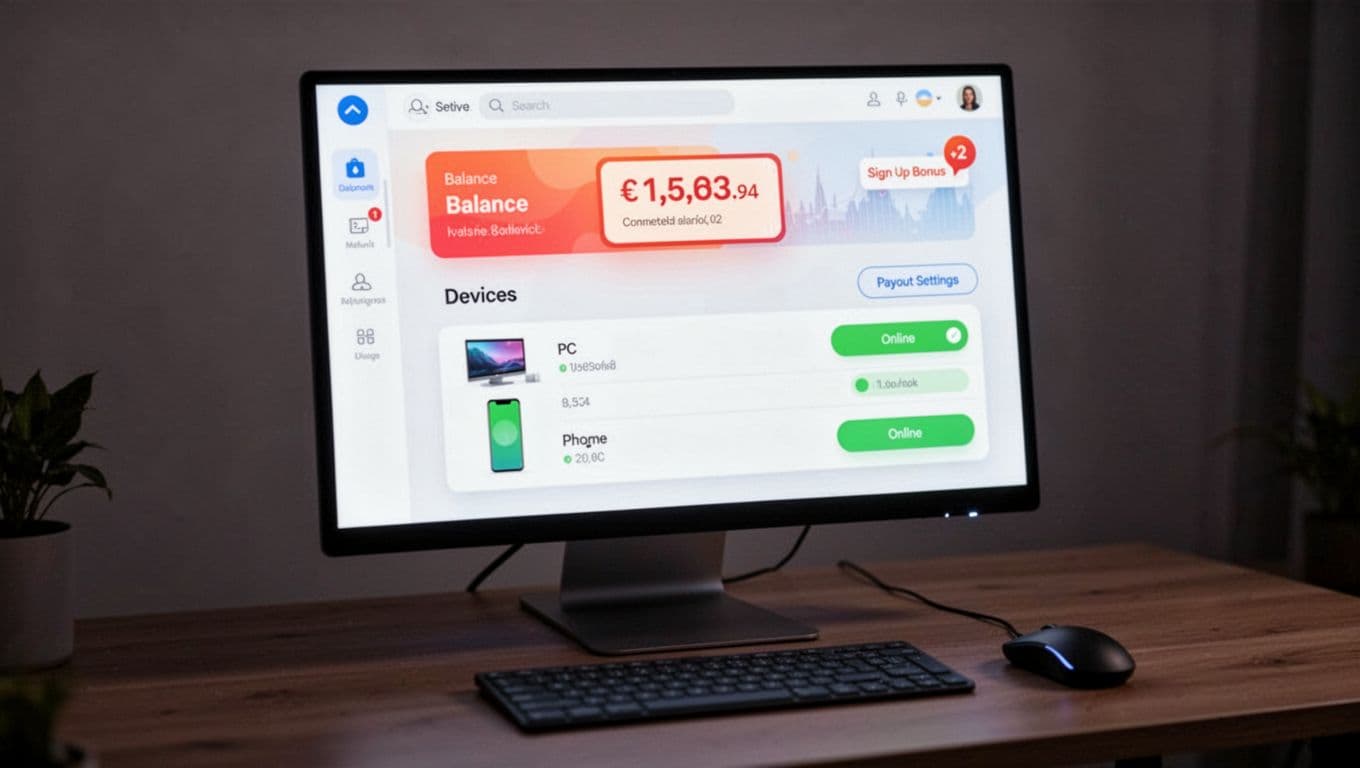
One dashboard, multiple devices, and payout settings that are correct from day one (created with AI).
Account setup is simple, but small mistakes cost time. Create your EarnApp account with an email you actually keep, then stick to one login across every device. When you install EarnApp on Windows, macOS, Linux, Raspberry Pi, Android, or iOS, the goal is the same: every device should appear under one dashboard.
Do these checks early:
- Confirm each device is linked to your account dashboard (don't assume install equals linked). If a device runs but isn't assigned, you can lose track of where earnings come from.
- Name devices clearly (for example, "Basement-PC" or "Spare-Android"). This makes troubleshooting faster later.
- Set payout details right away. Even if you cash out later, you want your payout method ready so you don't hit a preventable delay.
EarnApp payout options can vary by region and account status. The safest move is to open the dashboard's payout section and verify what's available for you today, not what someone posted months ago. If you want a deeper overview of official help resources, the main EarnApp Help Center is the best starting point.
About the $2 sign-up bonus: some users report seeing a bonus offer, but promotions can change or be targeted. So, treat it like a "nice extra," not part of your math. After signup, check your dashboard (or official help content) and confirm whether the bonus appears and what the terms are.
The main win here is boring: verify payouts and device linking up front, then let the device run. That's how you avoid setup mistakes that drag on for weeks.
How to install EarnApp on Windows and Mac step by step
If you want stable earnings, the install matters. The goal is simple: install EarnApp from the official dashboard, sign in so the device is linked, then confirm the background service stays online after a reboot.
Two rules prevent most problems. First, always sign in during the first run, because unlinked devices can lose tracked earnings. Second, confirm you can see the app running (system tray on Windows, menu bar on macOS) before you walk away.
Windows install steps and first run checks
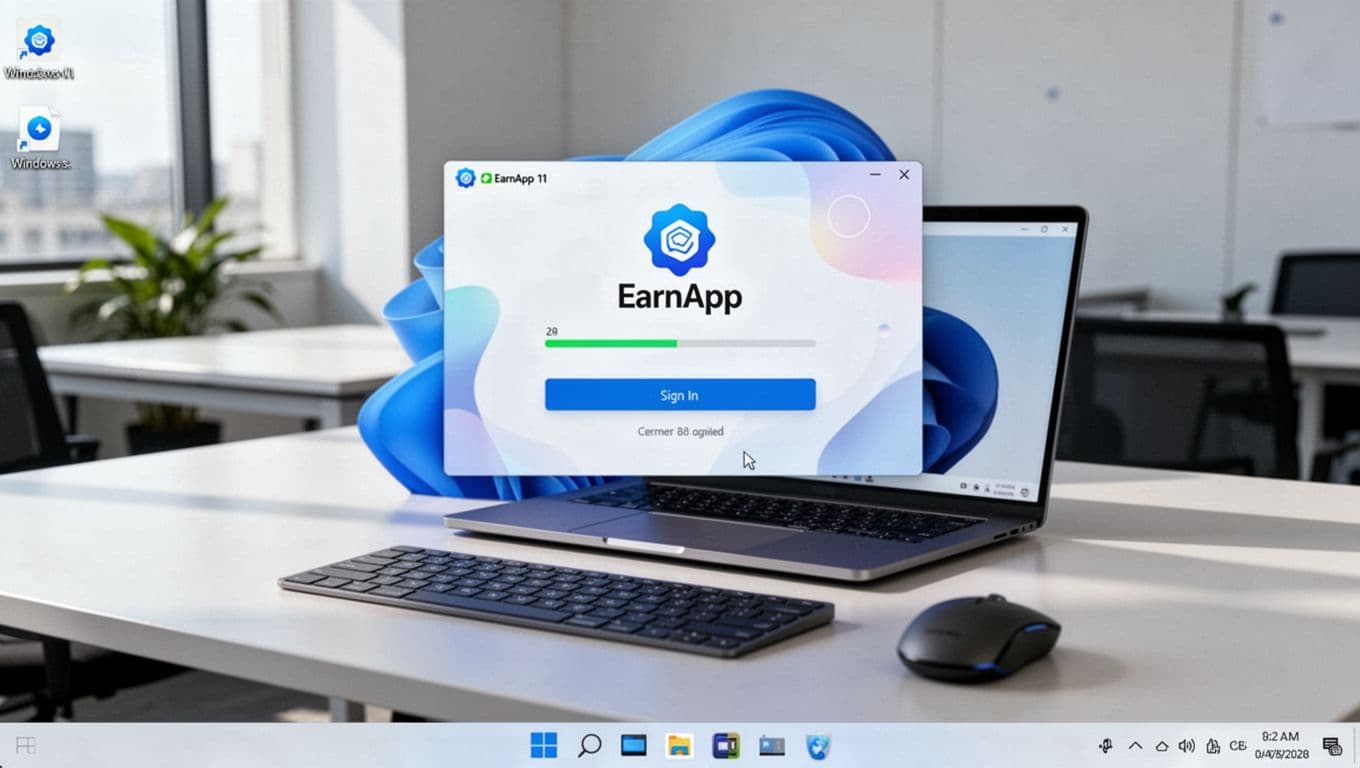 EarnApp installing on Windows, with the tray icon visible for quick status checks (created with AI).
Use these steps on Windows 10 or Windows 11. Keep the device on a stable home network during setup.
- Download EarnApp from the official dashboard. Open your browser, go to the EarnApp dashboard, sign in, then download the Windows installer. The official help doc walks through the same flow in installing and linking EarnApp.
- Open the installer you downloaded. In most cases it lands in your Downloads folder. Double-click the installer to start.
- Allow permissions if Windows asks. If you see a User Account Control prompt, select Yes. This lets the app install and register its background service.
- Follow the installer prompts. Accept the terms, then keep going until it finishes. If you see options like Launch after install or Run on startup, enable them. Startup is what keeps uptime consistent.
- Sign in to link this PC to your account. On first run, EarnApp typically opens a browser sign-in. Complete the login, then return to the app. You want a clear success message (linked, connected, or online).
- Confirm the tray icon is present. Look at the bottom-right system tray area near the clock. The EarnApp icon is your quick health check. If it is there, the app is running in the background.
- Open the dashboard and verify balance view updates. Go back to your EarnApp dashboard and check that the device appears. New installs can take a bit to show traffic, so focus on device presence first, not earnings.
- Confirm the device is linked and named clearly. If the dashboard lets you label devices, rename it to something you will recognize later (for example,
Office-PC).
Fast verification: tray icon visible, device shows in the dashboard, and status stays online for at least 10 to 15 minutes.
Troubleshooting if the icon does not appear: first open the hidden icons arrow in the tray and look there. Next, check Startup apps (Task Manager, then Startup) and confirm EarnApp is enabled. If startup is disabled, the app may run only when you launch it manually.
Mac install steps and permission prompts to expect
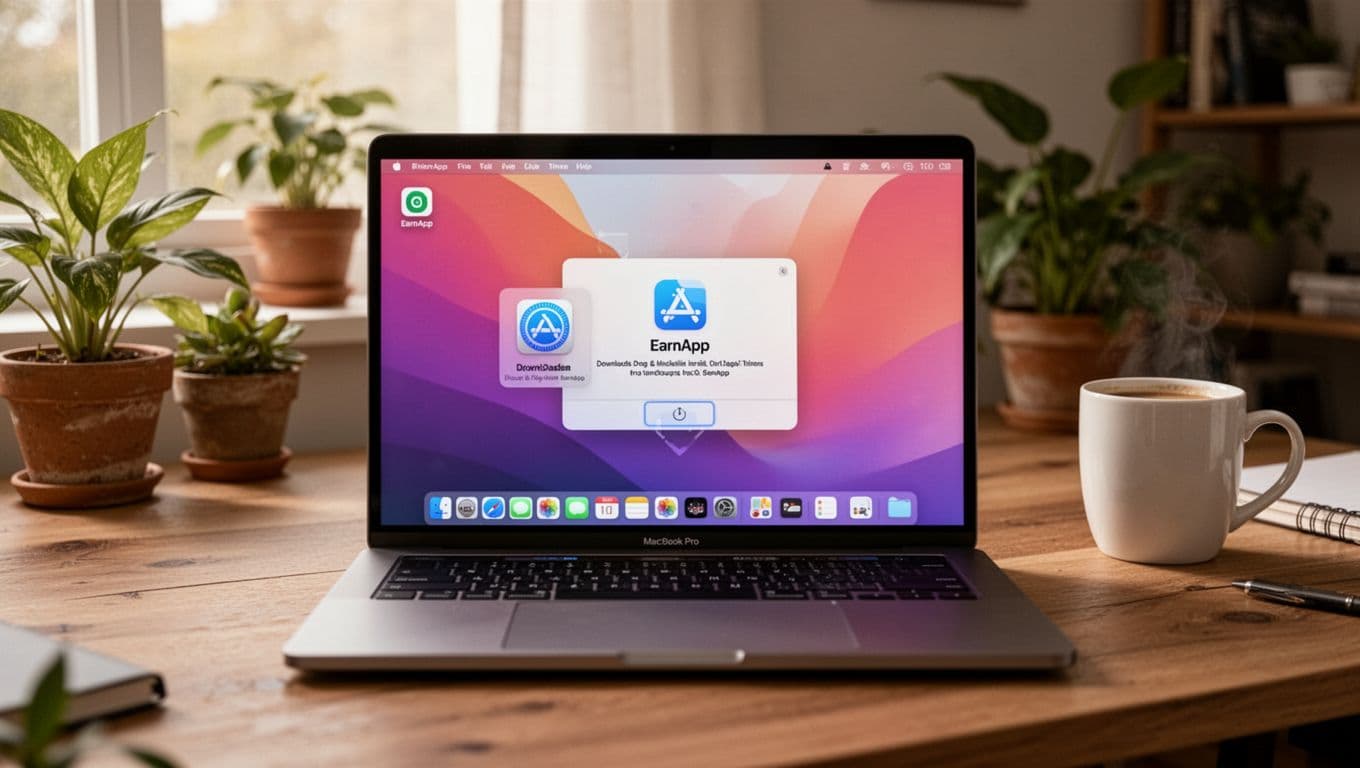 Drag-and-drop install on macOS, followed by a quick menu bar check to confirm it is running (created with AI).
macOS installs usually take a few minutes. The main difference is Apple's security prompts. They are normal, so don't panic when you see them.
- Download EarnApp from the official dashboard. Sign in, then download the macOS version from the same account area you use for other devices. For platform requirements, cross-check EarnApp installation requirements.
- Open the downloaded file. You will usually get a
.dmgfile. Double-click it to open the installer window. - Drag the app into Applications (if prompted). Many Mac installers use a simple drag-and-drop step. Move EarnApp into your Applications folder so updates and permissions work correctly.
- Approve the macOS security prompt. If macOS blocks the app, open System Settings, then Privacy & Security, and approve opening the app. Some versions show an "Open Anyway" style option after the first attempt.
- Sign in to link your Mac. Like Windows, the first run should push you through a sign-in flow. Finish it so the device is tied to your account.
- Confirm the menu bar icon appears. Look at the top-right menu bar. That icon is your status indicator, similar to the Windows tray.
- Restart once, then confirm it auto-starts. After reboot, check the menu bar again. If the icon is there without you opening the app, startup is working.
- Check Login Items if it doesn't start on boot. Go to System Settings, then General, then Login Items, and ensure EarnApp is allowed. If macOS lists it under "Allow in the Background," enable it.
A clean Mac setup feels boring. That is good. You want the app to run like a small utility, not something you babysit.
Keep EarnApp running without slowing down your computer
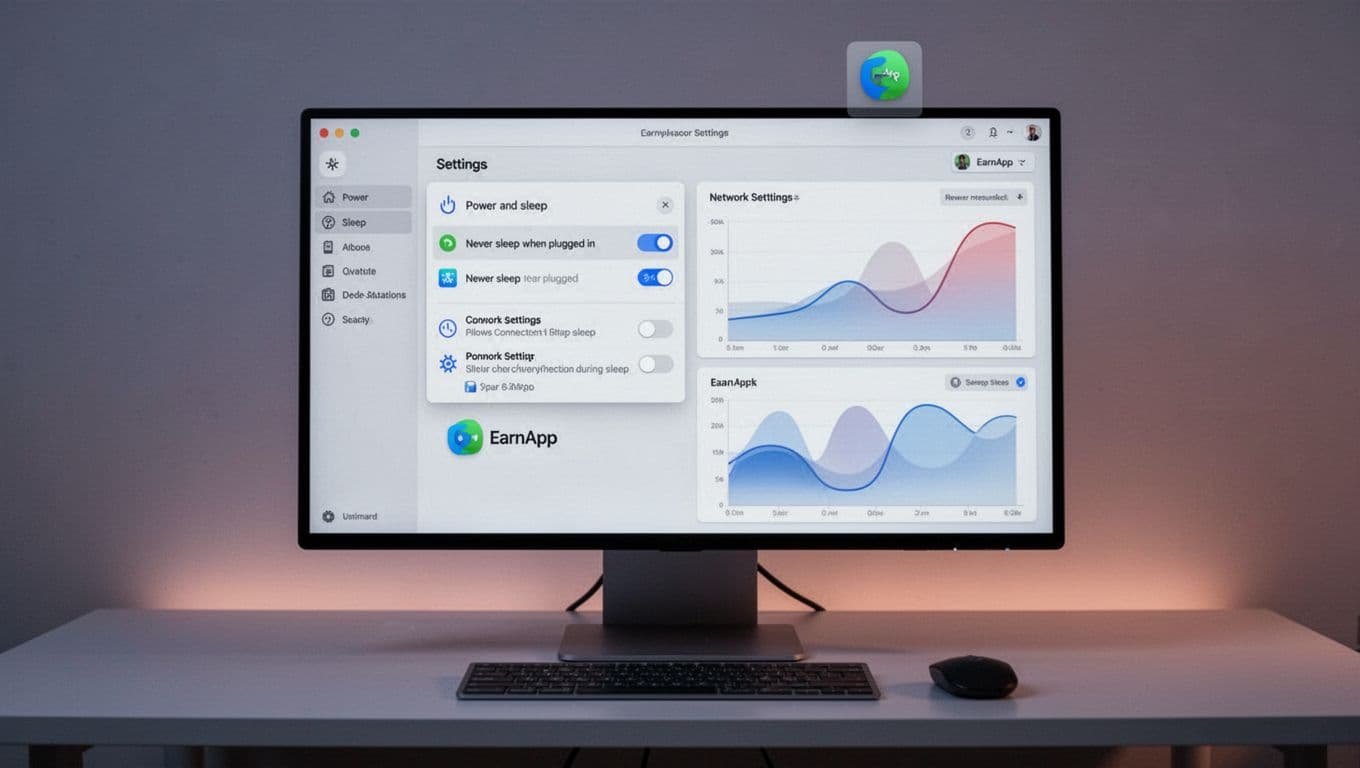 Power settings tuned for uptime, which helps EarnApp stay connected without constant relaunches (created with AI).
EarnApp is lightweight, but your operating system can still cut it off. Sleep and network dropouts cause most "offline" reports, so fix those first.
Start with power settings:
- On Windows, set sleep to Never while plugged in. Also keep the screen timeout separate if you want. The screen can turn off, but the PC should stay awake.
- On macOS, prevent sleep when the Mac is plugged in. If your version offers it, enable "wake for network access" so networking stays alive during idle time.
Next, watch your network tools. Heavy VPN use can break routing or cause disconnects, especially if the VPN rotates IPs often. If you need a VPN for work, consider running EarnApp on a separate device on the same home network.
Finally, be practical about performance. If you are gaming, streaming 4K, or doing video calls, you can close EarnApp temporarily. The same goes for metered hotspots or travel Wi-Fi. In those cases, your priority is avoiding data charges and keeping your connection stable.
Install EarnApp on Android, iPhone, and Linux (plus Raspberry Pi)
Mobile and Linux installs are usually where people get tripped up, not because they're hard, but because the download source is different. A lot of older guides mention names like Offerwall (Android) or Bright Rewards (iOS). Those are commonly discussed features and brand references, but the app you're installing is still EarnApp.
The other key point is uptime. Phones love to pause background apps, and Linux devices can fail quietly if a service does not start on boot. The goal is the same on every platform: install EarnApp, link it to your account immediately, then keep the device online on a stable connection.
Android install from Google Play and how to keep it active
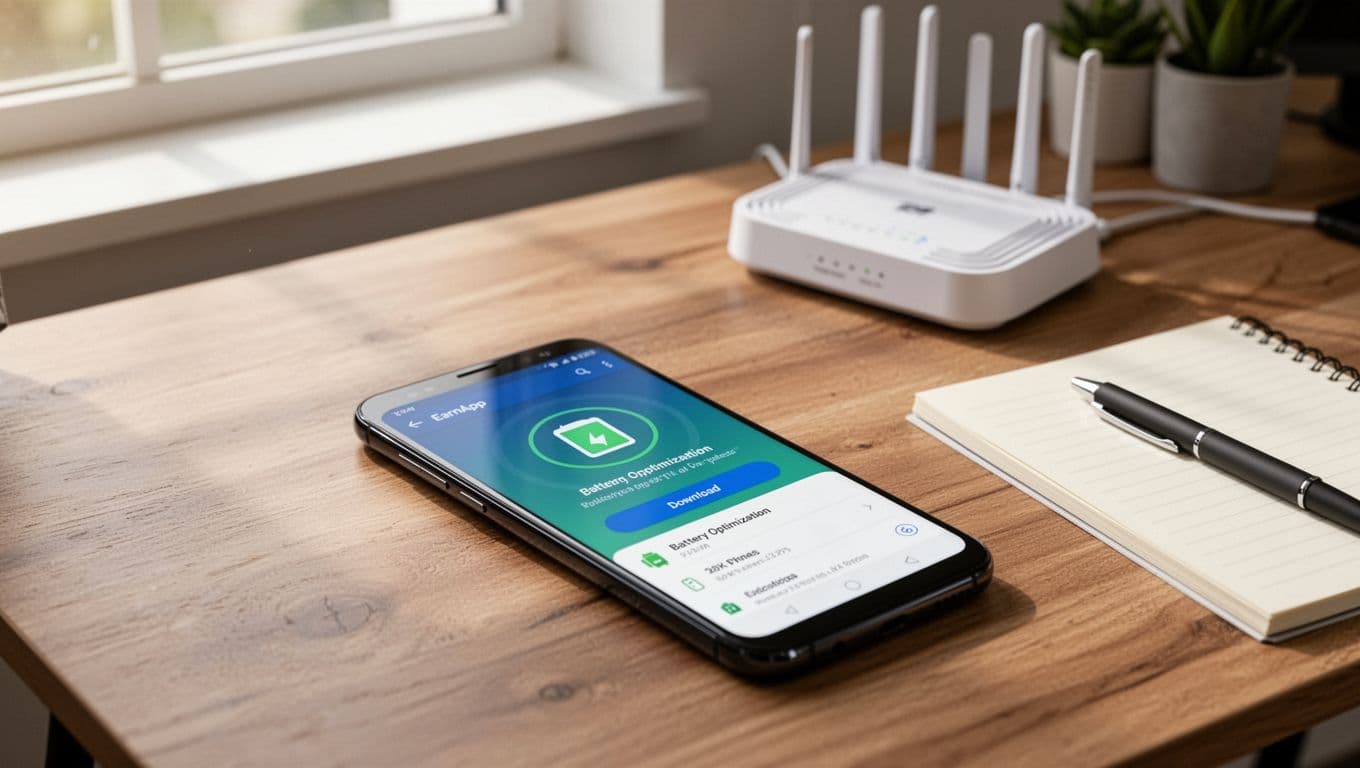 EarnApp being installed on Android from a direct download, with Wi-Fi and battery settings nearby (created with AI).
On Android, the most important detail is the source. EarnApp is not typically available in Google Play, so you install it from the official EarnApp dashboard as an APK. If you see "Offerwall" mentioned, treat it as a tasks or offers area, not the installer name.
Here's the clean, safe flow:
- Open the official dashboard in your phone browser. Use your Android device and sign in first, so the app can link right away. The official steps are covered in EarnApp install and linking instructions.
- Download EarnApp for Android. The dashboard provides the Android download.
- Install the APK. Android will warn you about "unknown apps" because you are installing outside Google Play. Allow installs for the browser you used (Chrome, Samsung Internet, etc.), then continue.
- Open EarnApp and sign in immediately. Don't skip the linking step. Unlinked devices can't always recover past earnings, so treat linking like plugging in a power cord.
- Confirm the device appears in your dashboard. Give it a few minutes, then check that the Android device shows up as online.
Next, keep Android from putting EarnApp to sleep. This is the difference between a device that stays online for days and one that drops every hour.
A reliable set of Android settings to check:
- Disable battery optimization for EarnApp: Go to Settings > Apps > EarnApp > Battery. Set it to Unrestricted or Don't optimize, depending on your phone.
- Allow background data: In Mobile data and Wi-Fi settings for the app, allow background usage (names vary by manufacturer).
- Keep Wi-Fi stable: Turn off any "Wi-Fi power saving" feature if your phone has it.
Finally, use the right network. Prefer Wi-Fi, because mobile data can be metered and carriers may flag heavy background traffic. If you must use cellular, watch your data cap closely.
If EarnApp keeps going offline on Android, battery settings are usually the cause. Fix those before reinstalling.
If you want an extra layer of stability, park the phone on a charger in a cool spot, and keep it on Wi-Fi. A spare Android on a shelf can behave like a tiny always-on device when you remove the battery restrictions.
 Photo by Markus Winkler
iPhone install notes (Bright Rewards) and what's different on iOS
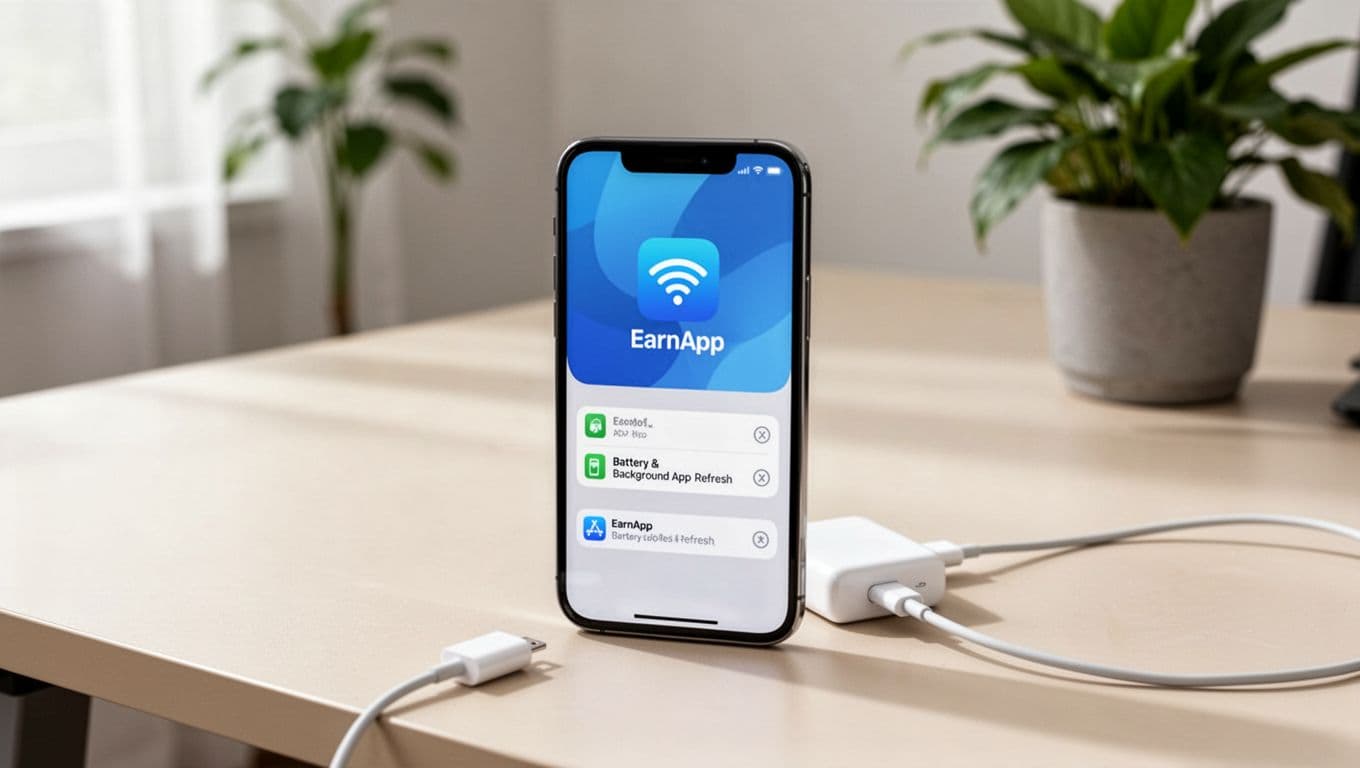 An iPhone configured for better uptime, with charging and iOS background settings in view (created with AI).
iOS has stricter background rules than Android, so "always-on" behavior is less predictable. You may also see "Bright Rewards" mentioned in forums or videos. Still, the install you want is EarnApp, and it is often not distributed as a normal App Store install.
A practical iPhone setup looks like this:
- Open Safari and sign in to the EarnApp dashboard. Start from the official source, not a third-party site.
- Use the iOS download option from the dashboard. Follow the prompts to install.
- Trust the app if iOS blocks it. Some iOS installs require approval under Settings > General > VPN & Device Management (wording can vary by iOS version).
- Open EarnApp and sign in right away. Linking is still the step that "claims" the device for your account.
- Confirm the device shows in your dashboard. Don't judge results in the first few minutes. First, confirm it appears and stays online for a while.
What's different on iOS is uptime control. Apple does not give you the same "Unrestricted battery" switch that Android offers. Instead, you improve reliability with a few small choices:
- Turn off Low Power Mode: Low Power Mode limits background activity.
- Keep the iPhone plugged in when possible, because iOS deprioritizes background tasks on battery.
- Use Wi-Fi instead of cellular for stability and to avoid data charges.
- Keep the app available: If iOS offloads unused apps, re-open EarnApp after long periods of inactivity.
Be realistic about results. Some iPhones will pause the app more often, especially if the device is busy, hot, or low on battery. In other words, an iPhone can work, but it is not as "set and forget" as a desktop or a well-configured Android.
Linux and Raspberry Pi install basics without getting lost
Linux and Raspberry Pi installs are powerful because they can run for weeks with almost no input. However, they're also where people paste unsafe commands from random posts. Don't do that. Use the official instructions, read each line, and only run commands you understand.
Start by confirming your device is supported. EarnApp support details (including Raspberry Pi architectures) are listed in installation requirements and supported hardware. One common gotcha is Raspberry Pi architecture: arm7 and arm64 are supported, while arm6 is not.
A safe, minimal install approach:
- Use the official EarnApp Linux or Raspberry Pi steps from the Help Center. Don't rely on mirrored scripts.
- Run the install commands exactly as written. Copy carefully, and stop if anything looks different from the official page.
- Link the device to your account. Linux installs typically give you a linking URL. Open it in a browser where you're signed in.
- Reboot once. Then verify the service starts automatically.
After install, do three checks before you walk away:
- Confirm the service is running: On systemd-based distros, check the EarnApp service status (if the help doc instructs it). If it's inactive, start it and enable it on boot.
- Confirm the device shows in the dashboard: You're looking for the device entry, not instant earnings.
- Confirm the network is stable: Ethernet is usually better than Wi-Fi on small boards.
If you're setting this up on a Raspberry Pi, treat Ethernet like a seatbelt. Wi-Fi works, but a weak signal will cause dropouts that look like "EarnApp issues" when the real problem is the link quality.
One more critical warning: don't install EarnApp in hosting environments. EarnApp explicitly prohibits running it in many virtualized setups, including Docker and typical hosted VMs. If you're tempted, read EarnApp's VM and Docker policy first. It can save your account.
Linux installs are stable when you keep them simple: official steps, one device per normal home connection, and a reliable network path (Ethernet if you can).
After you install EarnApp, set it up for steady earnings
Once you install EarnApp, the job is only half done. The next 15 minutes decide whether your device earns steadily or keeps dropping offline. Your priorities are simple: confirm the device is linked, confirm it stays online, and prevent your OS (or phone) from shutting it down in the background.
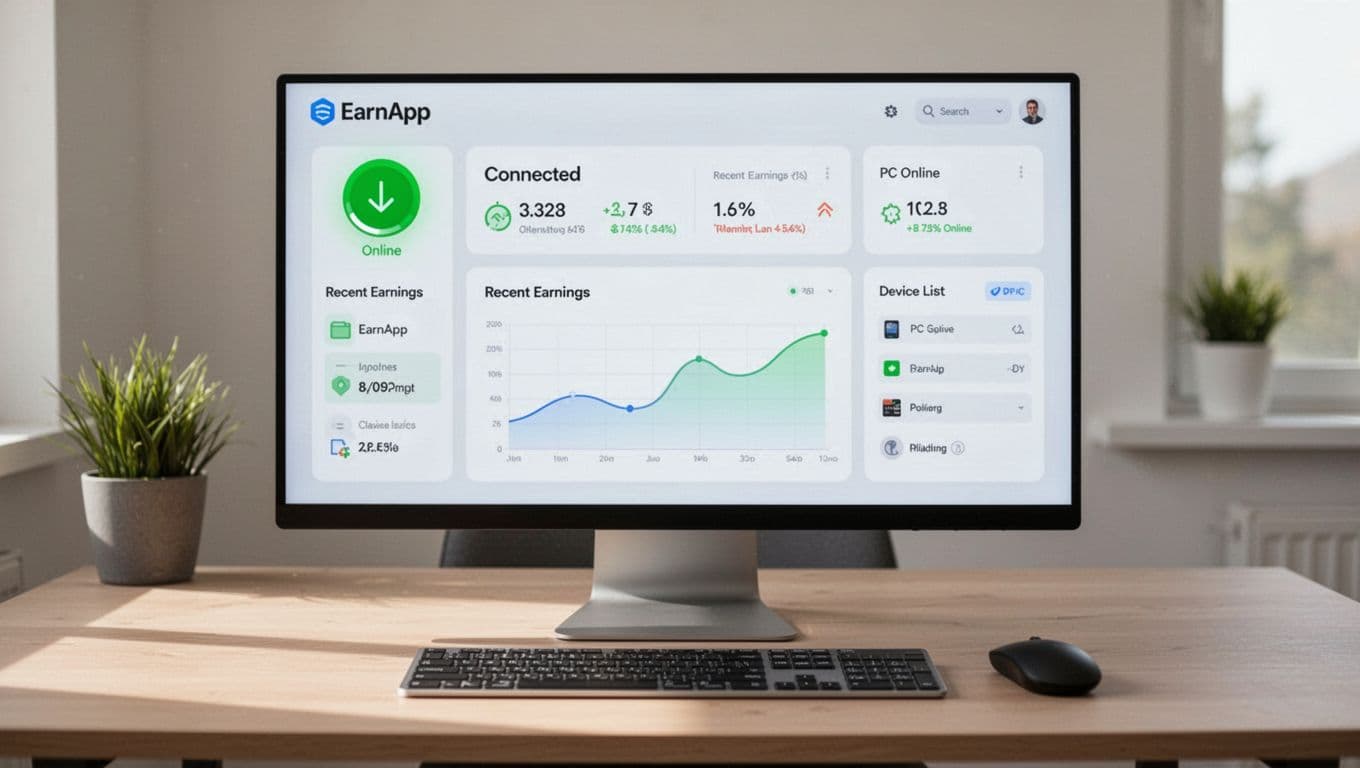 An EarnApp status view that makes it easy to confirm your device is online and updating (created with AI).
Confirm your device is connected and earning
Right after you install EarnApp, confirm two things: the app shows connected on the device, and the device shows online in your dashboard. If either one is missing, you can end up waiting hours with nothing to show for it.
Use this quick checklist, in order:
- Open EarnApp on the device (tray icon on Windows, menu bar icon on Mac, app screen on mobile). Confirm it says Connected, Online, or similar.
- Confirm you're signed in and linked. If it opens a browser login, finish it. Linking ties the device to your account.
- Open your EarnApp dashboard and look for the device in the device list. Device presence matters more than early earnings.
- Wait 10 to 30 minutes before judging results. Dashboards often update in batches, not second-by-second.
- Don't panic about low first-hour activity. A new install can show near-zero traffic at first, even if everything works.
A common confusion is the word demand. In plain words, demand means "how often EarnApp's network needs an IP address from your area." When demand is high, more approved traffic routes through you, so you earn more. When demand is low, your device can sit idle even while it stays online. Think of it like a taxi waiting at the airport. The car is ready, but rides depend on arrivals.
If you want the official view of what drives earnings (including passive sharing and optional tasks), scan EarnApp's guide on making money. It aligns with what you see in practice: uptime plus demand equals most of the result.
The dashboard is your truth source. First confirm your device shows online, then give stats time to catch up.
Smart settings: startup, sleep, battery, and data limits
Stable earnings come from one thing: uptime without surprises. Most "it stopped earning" cases trace back to startup behavior, sleep, battery limits, or a metered data setting that quietly throttles background traffic.
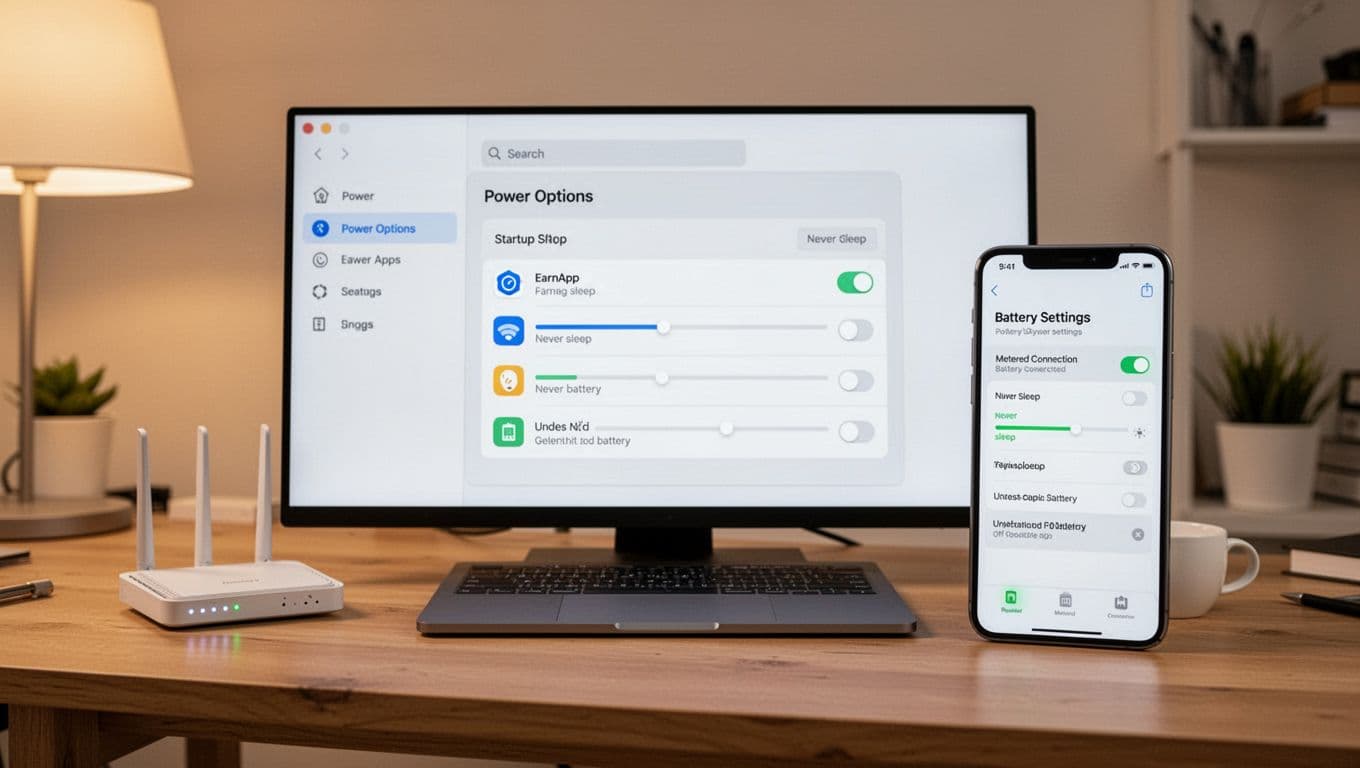 Power, startup, and battery settings that help EarnApp stay online longer (created with AI).
On Windows, check two places after you install EarnApp:
- Startup apps: Open Task Manager, go to Startup apps, and make sure EarnApp is enabled. If it's disabled, it won't relaunch after reboot.
- Sleep settings: Set the PC to avoid sleeping while plugged in. Let the display turn off if you want, but keep the system awake.
On macOS, focus on background permission and login behavior:
- Login Items: Go to System Settings > General > Login Items. Allow EarnApp to run in the background if macOS lists it there.
- Sleep behavior while plugged in: Configure sleep so the Mac does not suspend networking during idle time.
On Android, battery features can kill EarnApp even when the app looks fine. Fix that early:
- Open Settings > Apps > EarnApp > Battery and set it to Unrestricted (or the closest option your phone offers).
- Make sure background data is allowed for the app.
- Keep the phone plugged in when possible. This matters because EarnApp can stop working when battery gets low (the real-time notes indicate it stops at about 30% battery).
Also check metered data controls. These can limit background use even on Wi-Fi:
- Windows: If your Wi-Fi is marked as a metered connection, Windows may reduce background data. Turn metered off for your home network.
- macOS: If you use Low Data Mode on Wi-Fi, turn it off for the network running EarnApp.
- Router apps: Some routers label devices as "limited" or "guest" and apply caps. Put your EarnApp device on the normal LAN, not a restricted guest network.
Traveling or using a hotspot? Pause it. If you're on a hotel Wi-Fi, a coffee shop network, or a limited phone hotspot, don't run EarnApp. First, you risk data charges. Second, you can violate network terms. Pause or exit the app until you're back on a network you control.
Ways to earn more without risking your network
If you want higher earnings after you install EarnApp, stay on the safe side. Chasing "max traffic" with sketchy networks usually backfires. Instead, focus on stability and clean setups.
Start with the boring wins that actually move the needle:
- Improve uptime: Keep one reliable device online as close to 24/7 as you can. Overnight hours often add steady time online.
- Use a spare device: A spare laptop, mini PC, or old Android phone can run quietly without disrupting your main computer.
- Prefer Ethernet: Wired links drop less than Wi-Fi, so the app stays connected longer.
- Avoid public Wi-Fi: Public networks are unstable and higher risk. They also trigger security filters more often.
Adding more devices can help, but keep expectations realistic. If multiple devices share the same home IP, gains may be limited because demand often centers on the IP and location. Still, a second always-on device can increase uptime coverage if your main device restarts or updates.
Keep your account clean too:
- Use one account for your devices. Don't split devices across multiple accounts to "test" things. That's hard to manage and can look suspicious.
- Follow the terms and local rules. If your ISP plan has a data cap, track usage for a week before you scale up.
- Don't mix in VPNs or proxy tools unless you know they are allowed for your setup. Changing IPs can reduce routing reliability.
Finally, remember that passive sharing is only one lane. If your dashboard shows Offerwall or tasks, treat it as optional. Tasks can boost totals, but they also take time. For a deeper breakdown of how rates and activity work, see the Comprehensive EarnApp Earnings Guide.
The safest path to "more" is steady uptime on a trusted network. Everything else is a small tweak.
Fix common install problems fast (login, not earning, connection issues)
When you install EarnApp, most issues fall into two buckets: the app cannot start (blocked or failed install), or it starts but cannot connect (offline, zero earnings). Treat this like debugging a printer, first confirm it can run, then confirm it can reach the network, then worry about output (earnings).
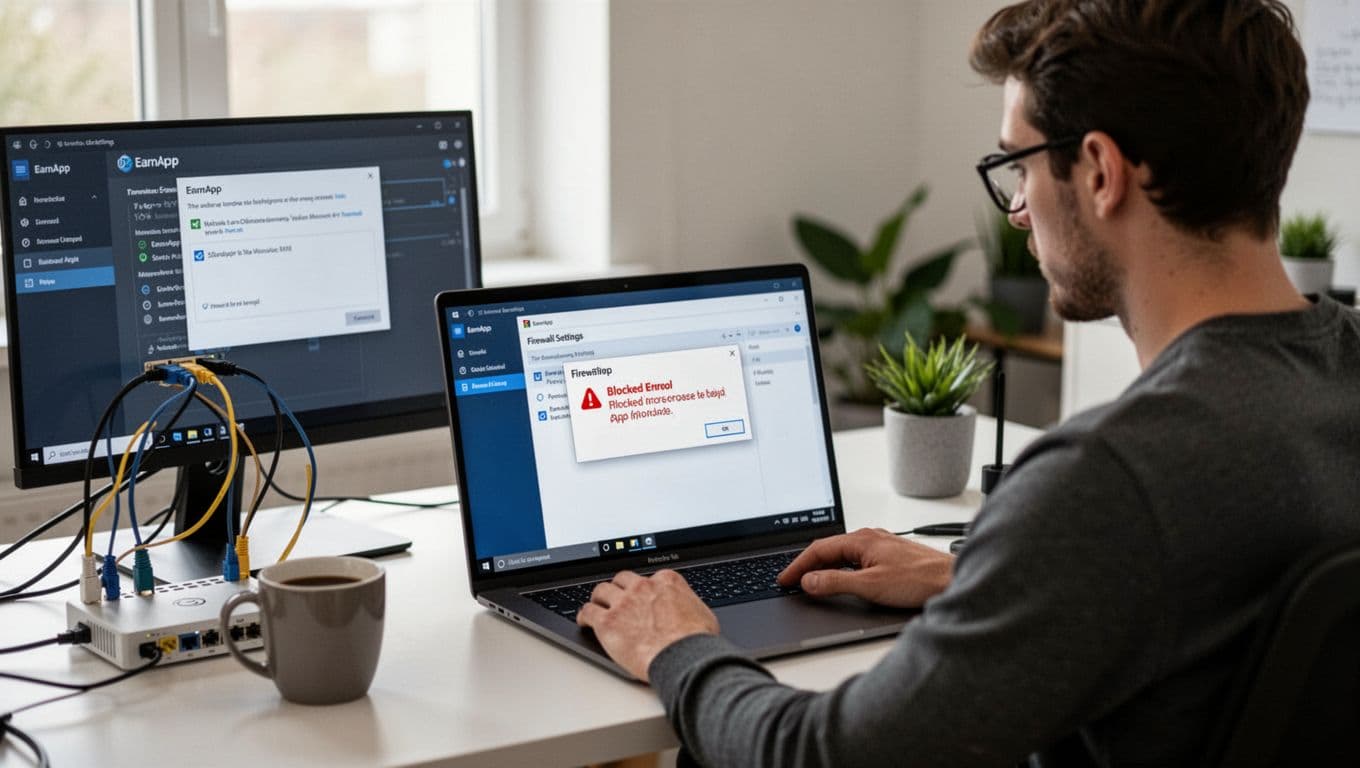 Security prompts and firewall blocks are common, especially right after a fresh install (created with AI).
Install fails or the app is blocked by security settings
Symptom: The installer won't open, closes instantly, or Windows/macOS says it can't be verified.
This usually means you grabbed an old file, the download is corrupt, or your OS security controls blocked it.
Start with the cleanest fix path:
- Re-download from the official source. Delete the old installer first, then download again from EarnApp's dashboard or official pages. Avoid third-party "mirrors" because they trigger security tools more often.
- Windows: run as admin. Right-click the installer, choose Run as administrator. This helps when the installer needs to add a background service.
- macOS: allow it in Security settings. Open System Settings > Privacy & Security, then find the blocked app message and choose Open Anyway (wording varies by macOS version).
- Restart and try again. A reboot clears stuck installer processes and completes pending security approvals.
Symptom: You can't sign in or the login page loops.
Most login loops come from browser issues, not the app itself. First, try opening the linking or login flow in a different browser (for example, switch between Chrome and Safari/Edge). Next, disable strict tracking blockers for the sign-in page, then retry.
If the app opens but never "links," the device can run without crediting your account. Fix login first, then let it sit online.
Important security note: don't disable your antivirus fully. If your security tool flags the installer, use an allow-list exception for the EarnApp executable or installer file instead. Full disable creates risk and can also cause other apps to misbehave.
If you suspect your IP got flagged during setup, check EarnApp's official explanation in Why an IP address gets blocked. It often points back to VPN or "high-risk IP" signals.
App installs but shows offline or earnings stay at zero
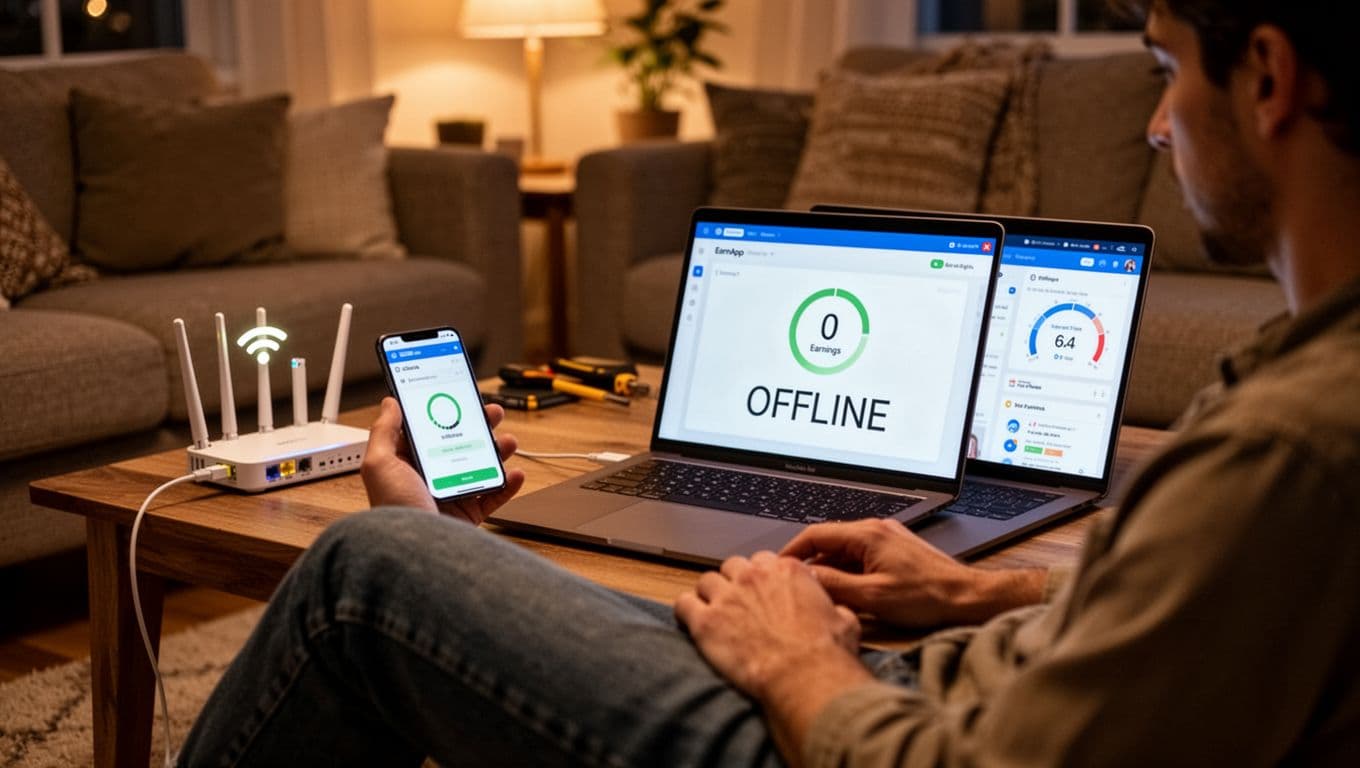 When the app is installed but shows offline, focus on connection basics before reinstalling (created with AI).
Symptom: The app status says "Offline" even though your internet works.
Treat "offline" like a heartbeat check. The app must stay running, your clock must be correct, and the network must allow the connection.
Use this quick checklist, in order:
- Confirm the internet works on the same device. Load two sites and run a quick speed test. If browsing fails, EarnApp will fail too.
- Restart the app. Fully quit it, then reopen. On Windows, check the system tray and hidden icons too.
- Reboot the device. This resets DNS, network adapters, and any stuck background services.
- Check date and time settings. Set time to automatic. Incorrect system time can break sign-in tokens and TLS connections.
- Try a different network. If possible, switch from Wi-Fi to Ethernet, or test on a phone hotspot for five minutes. If it works there, your router or ISP path is the issue.
Symptom: Earnings stay at $0 for hours or days.
First, separate "not connected" from "connected but idle." If the app shows Online but earnings do not move, demand might be low in your area. EarnApp itself notes earnings are not constant, so slow periods can happen even with perfect uptime (see EarnApp FAQ).
A practical approach is to give a new install a full day of uptime. Meanwhile, focus on stability:
- Keep the device awake and on trusted Wi-Fi or Ethernet.
- Avoid hopping networks because IP changes can slow routing.
- Don't run on restricted guest Wi-Fi, it often blocks background traffic.
Symptom: The app is installed but not running.
On Windows, confirm it is enabled under Startup apps, and confirm the tray icon exists after reboot. On macOS, check Login Items and "Allow in the Background." On Android, battery optimization can kill it, so set the app battery mode to Unrestricted (wording varies by phone brand).
VPN, proxy, firewall, and router problems to look for
Symptom: It works on one network, but not at home or at work.
This points to filtering. VPNs, proxies, strict firewalls, and locked-down routers can block the connection or make your IP look "non-residential."
VPN and proxy conflicts: EarnApp explicitly prohibits VPNs and proxies, and they can lead to connection failures or account issues. For the official policy, see EarnApp's VPN and proxy rule.
Simple test and fix:
- Turn off your VPN (and any "secure DNS" or proxy settings) and restart EarnApp.
- If you must use a VPN for work, run EarnApp on a separate device that stays off the VPN.
Firewall blocks (Windows, macOS, router): Firewalls can block outbound connections even when browsing looks fine.
Try these safe steps:
- Allow EarnApp through the OS firewall. On Windows, allow the app in Windows Security firewall prompts. On macOS, allow incoming connections if prompted.
- Avoid restrictive networks. School, office, hotel, and public Wi-Fi often block background services by design.
- Reboot the router. It sounds basic, but it clears stale tables and DNS issues on many consumer routers.
- Check router filtering features. Parental controls, "advanced security," ad blockers, and DNS filtering can block traffic silently.
Symptom: Internet feels slow after you install EarnApp.
This usually means your line is saturated or your Wi-Fi is weak. First, move the device to Ethernet if you can. Next, pause EarnApp during video calls or gaming. If your router supports QoS, set the EarnApp device to a lower priority.
If you still can't connect after testing without VPN and with firewall allows, use the official help entry point and contact options in the EarnApp Help Center.
Conclusion
A clean install EarnApp setup comes down to a few repeatable steps. First, pick a device that can stay online for long stretches, a desktop, mini PC, or a spare phone on Wi-Fi. Next, install only from the official EarnApp dashboard, then link the device right away so earnings attach to your account. After that, set startup and power options so the app stays running, because uptime usually matters more than hardware specs.
Keep expectations realistic. Earnings depend on demand for your location and IP, so quiet periods happen even when everything works. For safety, run EarnApp only on a trusted home network, avoid work, school, hotel, or public Wi-Fi, and watch data caps if your ISP limits monthly use. Also skip VPNs and proxies, since they can cause connection issues and policy problems.
Thanks for reading. Install on one device today, confirm it stays online and starts earning after a reboot, then add a second device only once the first runs smoothly for several days.